Family Browser NextGen is now available to everyone. It is the biggest update to Family Browser we have ever made: a new add-in for Revit 2025.5, 2026.5 and 2027, and a new web portal to go with it.
We rebuilt Family Browser from the ground up on modern technology, and we kept what you rely on. Your libraries, favourites, KC Cloud content and license carry straight over. There is nothing to migrate. Install it, open Revit, and your content is there.
Here are the five features we are most excited about.
The top five features
1. A faster palette that feels at home in Revit
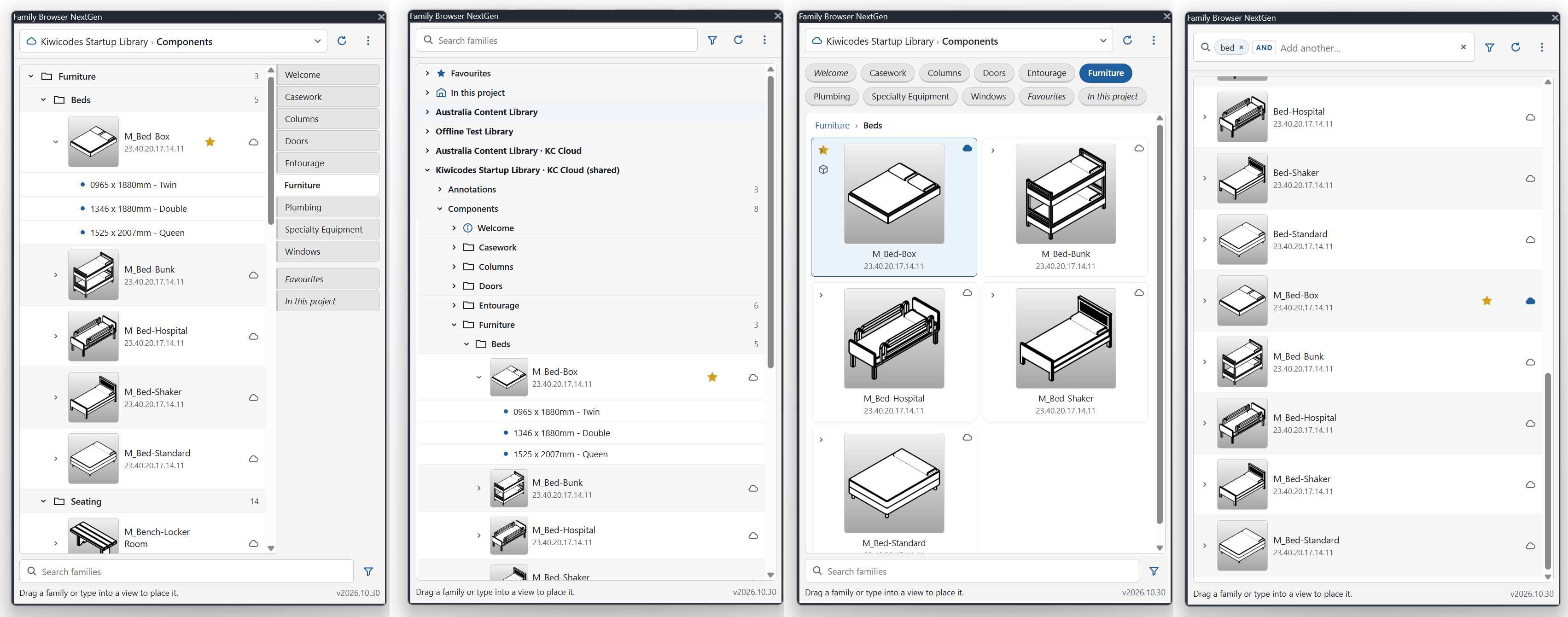
The palette opens with the Classic layout you already know, so nobody has to relearn anything. If you want something different, each person can pick another layout: Project Browser, Gallery or Search first. Light and dark themes follow Revit’s own setting.
Placing content is quicker too. Drag a family into a view and only what you need is loaded. If the family has several types, a type picker appears, and only the type you choose comes into your project.
1. A faster palette that feels at home in Revit
The palette opens with the Classic layout you already know, so nobody has to relearn anything. If you want something different, each person can pick another layout: Project Browser, Gallery or Search first. Light and dark themes follow Revit’s own setting.
Placing content is quicker too. Drag a family into a view and only what you need is loaded. If the family has several types, a type picker appears, and only the type you choose comes into your project.
2. Search that finds it the first time
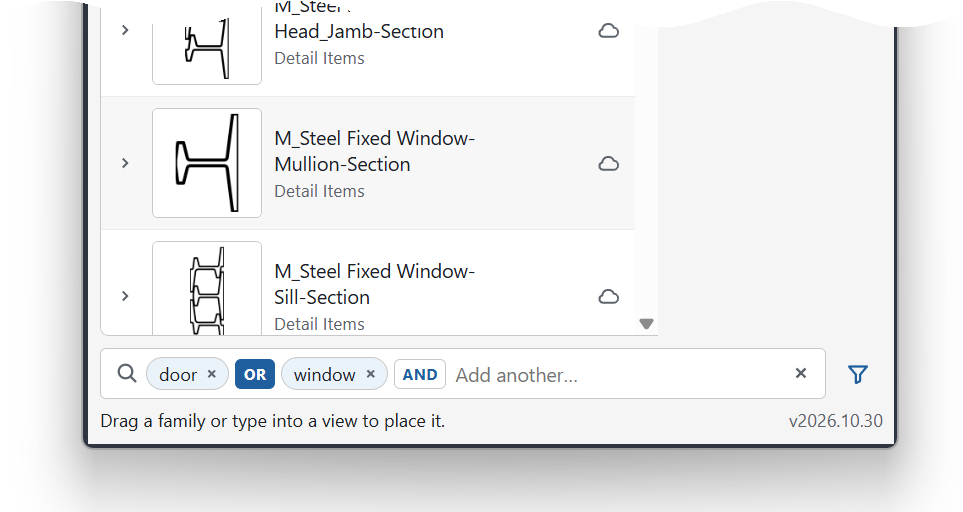
Type a word and press Enter to turn it into a search chip. Add more chips and switch between AND and OR to narrow or widen the search. Results from your own libraries and from KC Cloud appear as they arrive, so you are never left waiting for the slowest source. Filters sit right beside the search box.
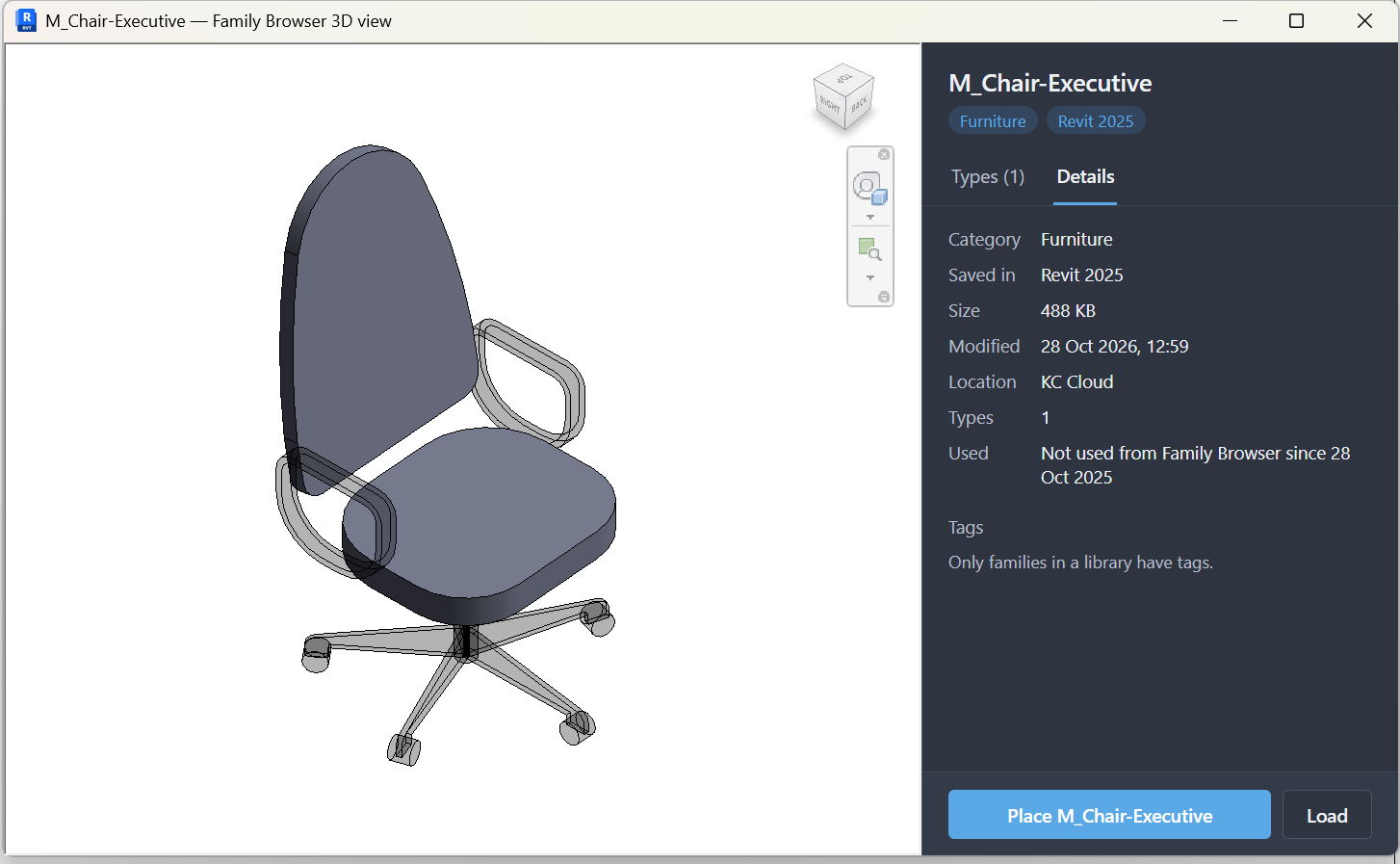
3. See a family in 3D before you place it
Open any family in a full 3D view, using Revit’s own viewer with the ViewCube to spin and zoom. A side panel shows the file details and every type. Place, load or drag a type straight from there. You know exactly what you are getting before it touches your model.
4. Library Studio: build libraries the easy way
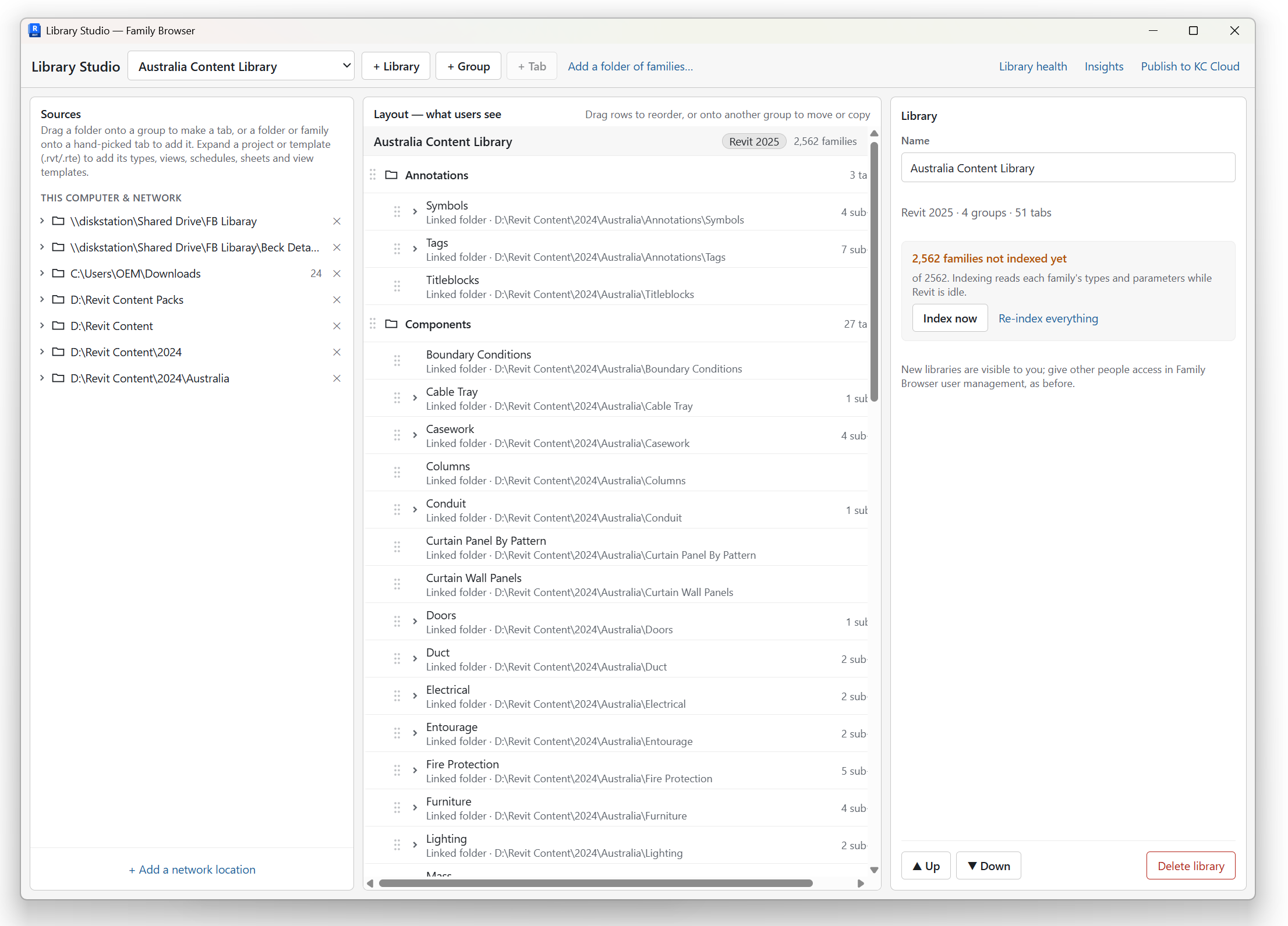
Library Studio replaces FB Builder. Drag folders in to make groups and tabs, drag rows to reorder them, and move or copy whole groups between levels. There is no Build button: every change saves as you go, and the palette updates live.
When a library is ready, publish it to KC Cloud. NextGen keeps the cloud copy in sync each time you publish changes, including type catalogs and preview pictures.
5. Family suggestions from your whole team
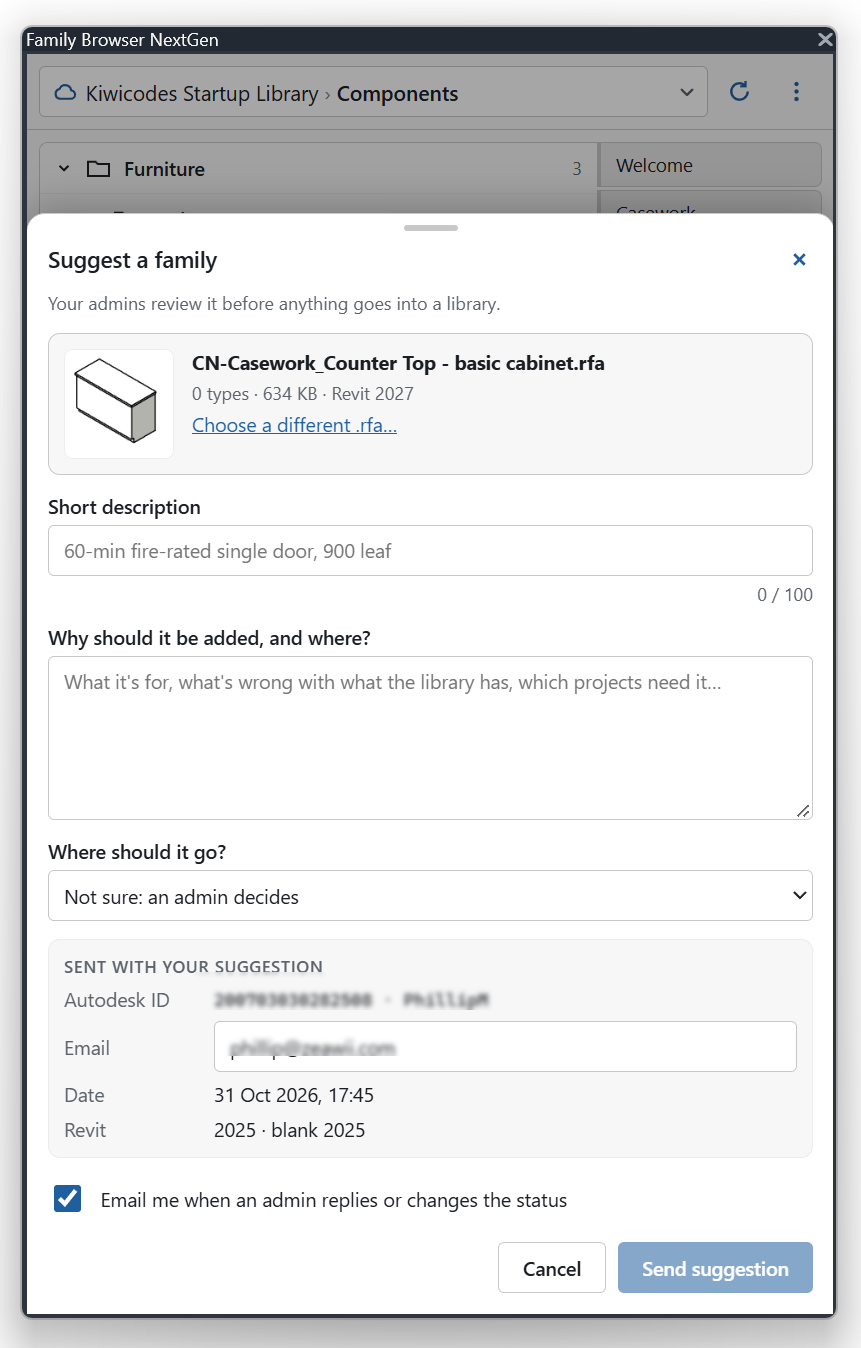
Anyone in Revit can now right-click a family and suggest it for your company library. Admins see each suggestion in the web portal. They can ask questions, approve or reject it, and add it to the right library in a few clicks. Good content no longer gets lost on someone’s desktop.
And there’s more
• A new web portal at fbportal.kiwicodes.com for people, licences, cloud libraries and billing, on any device.
• Keeps working offline. If the connection drops, your libraries stay available, and NextGen reconnects by itself.
• Insights show which families your team places and what they search for.
• Project content such as system types, drafting views, legends, schedules and view templates can be placed from .rvt and .rte files.
Already using Family Browser R5?
NextGen works with the same libraries, favourites and licence as R5. Your team can move across at its own pace.
• Revit 2025.5, 2026.5 and 2027 use NextGen. Earlier releases of 2025 and 2026 need updating to .5 first.
• Revit 2021 to 2024 stay on Family Browser R5, which we continue to support.
• R5 and NextGen can be installed side by side. You can turn R5 off for each Revit year in NextGen’s Settings › About.
• Your licence key is picked up automatically, so signing in takes no extra steps.
Get Family Browser NextGen
Download the installer from the Downloads page, close Revit, and run it.
New to Family Browser? After installing, open Revit and choose Create a company account. You get a free 21-day trial with 5 licences and a demo library to explore.
We would love to hear what you think. Tell us through the Contact page, and see what’s coming next on our road map.